

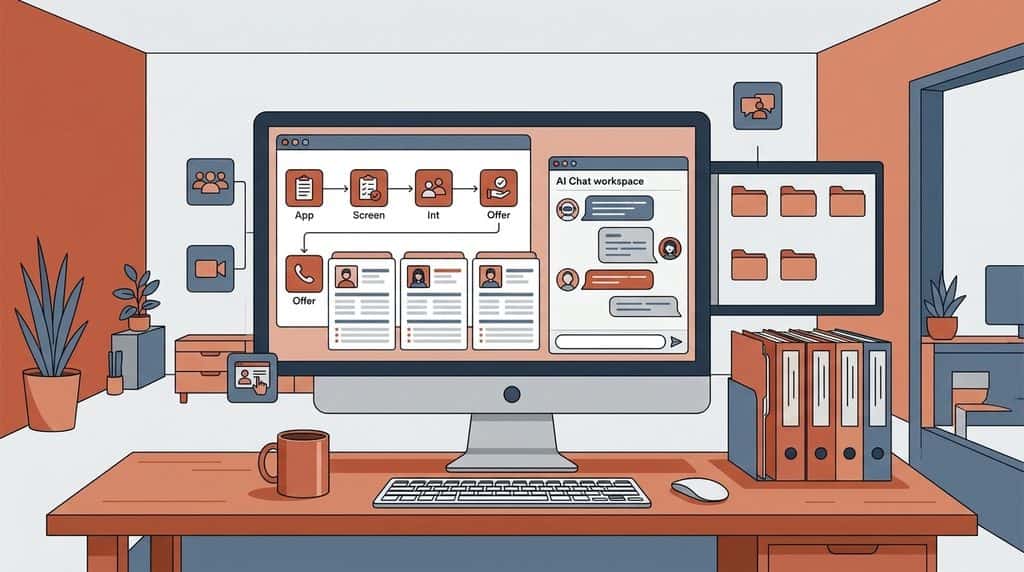
Quick answer: Recruiters get the most from Claude when they stop treating it as a blank chat box. Set your privacy setting first, give Claude standing instructions about your desk, build one Project per client or role type, and use Cowork with a folder of resumes and job descriptions when you want finished files instead of chat replies.
What it costs: the Free plan covers chat, up to five Projects, memory and connectors. Cowork, Research and Claude in Chrome need a paid plan, starting with Claude Pro at $20 a month, or $17 a month billed annually.
Who this is for: agency and in house recruiters who have signed up for Claude, or are about to, and want a setup that saves time on real searches from week one.
What can a recruiter actually do with Claude?
Claude handles the writing and sorting work that fills a recruiter’s week: turning an intake call into a search brief, rewriting job ads, building Boolean strings, comparing resumes against must haves, drafting outreach and writing candidate submissions. It does not replace your judgment on who moves forward. It gives you a strong first draft in seconds so you spend your time on calls.
The industry is already moving this way. Bullhorn’s 2026 trends report found that 30% of staffing firms have moved to some level of agentic AI, up from a year when most were only experimenting with basic generative AI.
The difference between recruiters who find Claude useful and those who give up is setup. A chat with no context gives generic answers. A Project that knows your firm’s voice, your submission format and your client’s must haves gives answers you can send.
Which Claude plan does a recruiter need?
Start on Free to learn the basics, then move to Pro when you want Cowork to work with files on your computer. Prices below are from Anthropic’s pricing page, checked October 2, 2026.
| Plan | Price | What recruiters get | Best for |
|---|---|---|---|
| Free | $0 | Chat, up to 5 Projects, memory, connectors (one custom connector), skills | Trying Claude on job ads and outreach |
| Pro | $20 a month, or $17 billed annually | Unlimited Projects, Cowork, Research, Claude in Chrome, more usage | A solo recruiter running live searches |
| Max | From $100 a month | Everything in Pro with 5x or 20x the usage | Heavy daily use, large resume batches |
| Team | $25 a seat a month, or $20 billed annually | Shared Projects, admin controls, commercial data terms | Agencies and TA teams sharing one setup |
Every plan has usage limits that reset on a rolling five hour window. If you plan to screen dozens of resumes a day, Pro limits will show up quickly, and Max or a Team premium seat is the fix.
How do you set up Claude for recruiting, step by step?
Five steps get you from a fresh account to a setup that knows your desk. Do them in this order, because each one builds on the last.
Step 1: Check your privacy setting before you paste any candidate data
On Free, Pro and Max, open Settings, then Privacy, and look for the setting called Help improve our AI models. Anthropic’s privacy help page says that turning it off means new chats are not used for future model training. Team and Enterprise plans fall under Anthropic’s commercial terms instead, which is one reason agencies handling client data should look at Team.
Step 2: Give Claude standing instructions about you
Under Settings, add a short profile: your role, your market, the roles you recruit for and how you like answers written. This is the context you would otherwise retype in every chat. Our free custom instructions builder writes this for you from a few questions and works for Claude as well as ChatGPT and Grok.
Step 3: Build one Project per client or role type
A Project is a workspace with its own instructions, files and chat history. Anthropic’s Projects guide confirms they are available on every plan, with Free accounts capped at five. Each Project also keeps its own memory, so details from one client never leak into another.
In the Project instructions, write the rules that never change for that client: tone, the submission format they want, salary ranges you can share and words to avoid. In the Project knowledge, upload the job description, your intake notes, two or three past submissions the client liked and your best performing outreach.
Step 4: Connect the tools you already use
Connectors let Claude read from and act in other apps with your permission. Anthropic’s connectors guide lists Gmail, Google Calendar, Google Drive, Microsoft 365 and Slack among the ready made ones, all found at claude.ai/connectors. Many ATS and sourcing tools now offer their own connection through MCP, which our guide to MCP for recruiters explains.
Step 5: Add skills for the jobs you repeat
Skills are saved instruction packs that Claude loads when your request matches, such as a resume scoring rubric or an interview kit builder. You do not need them on day one. When you are ready, our list of free Claude skills for recruiters ranks seven free packs by how easy they are to install.
How should recruiters organize Claude projects and folders?
Organize Claude the way you already organize searches. Agencies usually do best with one Project per client, and in house recruiters with one Project per role family. Keep a matching folder on your computer for Cowork, because Cowork works directly with the files inside it.
| What to create | Where | What goes in it |
|---|---|---|
| A desk Project | Claude chat | Your voice, outreach examples, Boolean habits, general rules |
| One Project per client or role family | Claude chat | Job descriptions, intake notes, submission template, client preferences |
| A Recruiting folder on your computer | Cowork | One subfolder per role, with Resumes, Job description and Output folders inside |
| A Templates folder | Cowork | Scorecard, submission and interview kit templates Claude can copy |
A simple Cowork structure looks like this: a Recruiting folder, then a folder for the client, then a folder for the role, with Resumes, Job description, Notes and Output inside. Point Cowork at the role folder and ask it to write into Output, so your originals stay untouched.
Cowork has its own Projects too. Anthropic’s Cowork Projects guide says each one can hold instructions, attached folders, scheduled tasks and memory, and that a Project made from a folder on your computer stays on that computer.
What is Cowork, and when should a recruiter use it instead of chat?
Cowork is the mode where Claude carries out a task instead of answering a question. It can read every resume in a folder, build a scored spreadsheet, write Word documents and run tasks on a schedule. Anthropic’s Cowork guide says it comes with Pro, Max, Team and Enterprise plans.
| Use chat when | Use Cowork when |
|---|---|
| You want one answer or one draft | You want finished files, such as a spreadsheet or Word document |
| The input fits in a paste | The input is a folder of resumes or notes |
| You will review the reply right away | You want Claude to keep working while you take calls |
| It is a one off task | It repeats weekly, such as a pipeline update |
One change to know about: from October 6, 2026, new Cowork tasks on Pro and Max run in the cloud by default, so work continues after you close your laptop. Anthropic’s Cowork platforms page notes that a cloud task can reach folders on your computer only while the desktop app is open and the task was started on desktop.
What are real recruiting use cases for Claude?
These eight cover most of a full desk. Each one names the setup it needs, so you can see which steps above matter for the work you do.
| Use case | Where to run it | Setup it needs |
|---|---|---|
| Intake call to search brief | Chat, inside the client Project | Intake template in Project knowledge |
| Job ad in your firm’s voice | Chat, inside the client Project | Two or three past ads that performed |
| Boolean and X ray strings | Chat | None |
| Screening a folder of resumes | Cowork | Role folder with resumes and must haves |
| Candidate submissions | Chat, inside the client Project | The client’s submission format |
| Outreach sequences | Chat or Cowork | Outreach examples, Gmail connector for drafts |
| Interview kits and scorecards | Cowork | Templates folder |
| Weekly hiring manager update | Cowork scheduled task | Pipeline spreadsheet in the role folder |
1. Turn an intake call into a search brief
Paste the call transcript or your notes into the client Project and ask for a one page brief: must haves, nice to haves, deal breakers, selling points and open questions for the hiring manager. Because the Project holds your template, every brief comes out in the same shape.
2. Write job ads that sound like your firm
Upload two or three ads that brought in strong applicants, then ask Claude to write the new ad in the same style from the brief. Ask it to flag requirements that might shrink the pool without reason, such as degree requirements the hiring manager never asked for.
3. Build Boolean and X ray strings
Give Claude the title, skills and location and ask for title variants, a LinkedIn Boolean string and a Google X ray string. Then ask for a looser and a tighter version. Our sourcing prompts page has copy ready versions.
4. Screen a folder of resumes against the must haves
In Cowork, point Claude at the role folder and ask for a spreadsheet with one row per candidate: each must have marked met, unclear or missing, with the line from the resume that proves it. That evidence column is what lets you defend a decision later. You still decide who moves forward. Our guide to the AI resume screener covers bias and the hiring rules that apply.
5. Write candidate submissions in the client’s format
With the resume and your screening call notes in the chat, ask for a submission in the format stored in the client Project. Claude pulls the details that matter to that client to the top, which is where most submission time goes.
6. Draft outreach sequences
Ask for a first message and two follow ups based on the candidate’s profile and the brief, in the voice from your examples. With the Gmail connector on, Claude can save them as drafts for you to review and send yourself.
7. Build interview kits and scorecards
In Cowork, ask Claude to create an interview kit as a Word document from your template: questions tied to each must have, what a strong answer sounds like and a scoring scale. Send the same kit to every interviewer so candidates are judged the same way.
8. Send a weekly hiring manager update
Keep a pipeline spreadsheet in the role folder and set a Cowork scheduled task for Friday morning: summarize changes since last week, list candidates by stage and name what is blocking each one. You review it and send it. For more ideas, try our free recruiting tasks checker.
What should recruiters keep out of Claude?
Treat candidate data with the same care you would in your ATS. A few rules keep you out of trouble with candidates, clients and your own firm.
- Remove what you do not need: home addresses, dates of birth, photos and anything that hints at age, health or family status add risk and nothing useful to a screen.
- Check client contracts: some clients forbid sending their data to outside AI tools. Ask before you upload their job descriptions or candidate lists.
- Use Incognito for one off sensitive chats: Anthropic’s memory help page says incognito chats are not saved to memory or chat history.
- Review before Cowork acts: Anthropic advises checking Claude’s planned actions before approving them, especially with sensitive files. Never let it send emails or reject candidates on its own.
- Keep a human on every rejection: AI can miss strong people with unusual backgrounds, and you are the one accountable for the decision.
Quick answers
Is Claude better than ChatGPT for recruiting?
Both handle recruiting writing well. Claude’s strengths are Projects with separate memory per client and Cowork for working through folders of files. Many recruiters use both. Module 8 of our free AI Recruiting Academy covers Claude, ChatGPT and Grok side by side.
Can Claude connect to my ATS?
Sometimes. A growing number of ATS platforms offer an MCP connection that Claude can use. Our ATS directory shows which ones support MCP.
Can I use Claude for free as a recruiter?
Yes. The Free plan includes chat, up to five Projects, memory, connectors and skills. Cowork, which works with folders on your computer, needs a paid plan.
Can Claude search LinkedIn for candidates?
Not directly. Claude writes the Boolean and X ray strings you run yourself. Tools that pull LinkedIn profiles automatically bring terms of service risk.
How many Projects should I make?
Start with one desk Project and one for your busiest client. Add more as searches open, and archive them when a role closes.
What is the difference between a Project and a skill?
A Project holds context about one client or role: files, instructions and memory. A skill holds a method, such as how to score a resume, and works across every Project.
The bottom line
Claude pays off for recruiters once it knows your desk. Turn off model training, write your standing instructions, build a Project for your busiest client and try one use case on a live role this week. Move to Pro when you want Cowork to work through folders of resumes for you, and add free recruiting skills once the basics are working. For copy ready prompts, open the recruiting prompt library.
Sources: Claude pricing, Claude Projects guide, Cowork Projects guide, Cowork getting started, Cowork platforms page, Claude connectors guide, Claude memory guide, Claude privacy settings, Bullhorn 2026 report
Free newsletter
Get the Work Insiders weekly
One email a week: the recruiting and HR tech news that mattered, the tools we just added to the directory, and one practical guide. No spam, and you can unsubscribe in one click.