

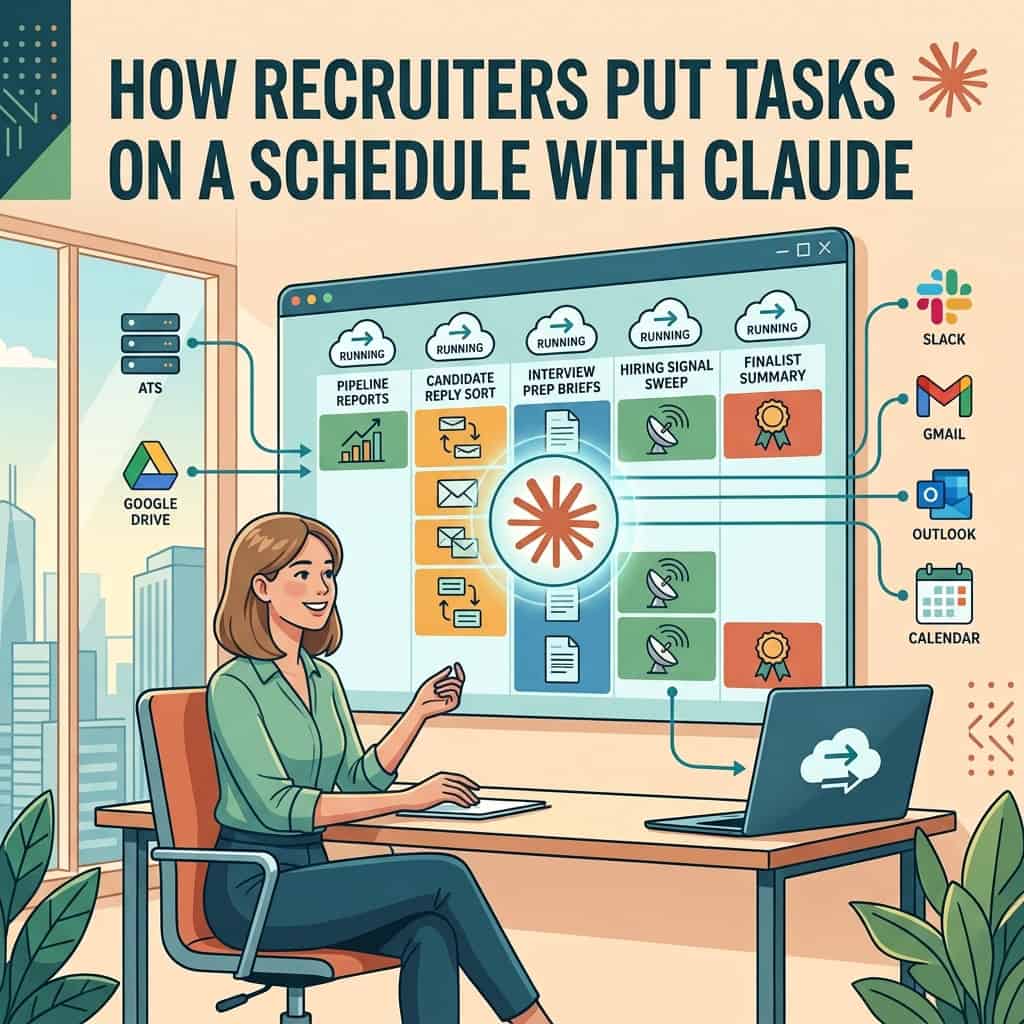
Quick answer: Claude’s scheduled tasks let you write a recruiting job once, such as “every Monday at 7 AM, build a pipeline report for each active client”, and Claude runs it on that schedule and leaves the finished work for you to review. No code is needed. Since October 2026, new scheduled tasks run in the cloud, so they keep going with your laptop closed.
What it costs: scheduled tasks are on every paid plan, starting with Claude Pro at $20 a month, or $17 a month billed annually. They are not on the Free plan.
The rule that keeps you safe: let scheduled tasks prepare, sort and draft. Keep anything that reaches a candidate or client on review until you have watched it work for a few weeks.
What are Claude scheduled tasks?
A scheduled task is a saved instruction that Claude runs on a timetable. Anthropic’s help page says each one runs as its own Cowork session with the same connectors, skills and plugins as a normal task, and you review the results when they are ready.
You choose how often it runs: hourly, daily, weekly, on weekdays or only when you click run. You also choose an approval mode, the model and, if needed, a folder for Claude to work in. From the Scheduled page you can pause, resume, edit or delete any task and see its past runs.
Most recruiting weeks are full of jobs like this. Elena Volk, writing for ERE, describes most of a recruiter’s week as repeatable mechanics: weekly client reports, salary benchmarks, company research, interview summaries and candidate emails.
Do scheduled tasks need your computer to be on?
Not anymore, for most tasks. On October 6, 2026, Anthropic moved new Cowork tasks on Pro and Max plans to the cloud, and new scheduled tasks run there too. Many guides written earlier in the year still say your computer has to be awake. That is now out of date.
| The task uses | Where it runs | Needs your computer on? |
|---|---|---|
| Connectors such as Gmail, Google Drive, Slack or your ATS | Cloud | No |
| Web search and research | Cloud | No |
| Files saved to your Claude account | Cloud | No |
| A folder on your computer | Reached through the desktop app | Yes, with the desktop app open |
| Local apps, browser use or computer use | Your computer | Yes |
| A task created before October 6, 2026 on your computer | Stays on your computer | Yes |
The practical lesson: keep the files your routines need in Google Drive or another connected service rather than a desktop folder, and they will run reliably.
Which recruiting tasks are worth putting on a schedule?
The best candidates are jobs you do on the same day every week, from the same sources, in the same format. Start with one that saves you real time and cannot embarrass you if it goes wrong.
| Routine | When | What Claude does | Connectors |
|---|---|---|---|
| Client pipeline reports | Monday 7 AM | Reads each active req, drafts a report per client in your template, saves to Drive | ATS, Google Drive |
| Candidate reply sort | Weekdays 8 AM | Sorts overnight replies into interested, not now and no, drafts answers | Gmail or Outlook |
| Hiring signal sweep | Daily | Finds companies in your niche that posted roles or raised money, lists the top ten | Web search |
| Interview prep briefs | Weekdays 6 PM | Builds a one page brief for each interview on tomorrow’s calendar | Calendar, ATS, web search |
| Finalist summary | Friday 2 PM | Lists candidates at final stage with a close forecast, posts it to Slack | ATS, Slack |
| Market report refresh | Quarterly | Reruns your market research and drafts an updated client report | Web search, Google Drive |
Several of these come straight from what Volk’s team runs: Monday reports per vacancy saved to a dated Drive folder, a Friday list of the top ten finalists posted to Slack and briefs for finalists before client interviews. Our market report guide covers the quarterly refresh, and our hiring signals guide explains what the daily sweep should look for.
How do you set up a scheduled task in Claude?
1. Run the job by hand first
Do the task once in a normal Cowork session and adjust the instructions until the output is right. A scheduled task repeats whatever you give it, mistakes included.
2. Connect what the task needs
Add the connectors the job reads from and writes to, such as Gmail, Google Drive, Slack or your ATS. Our Claude connectors list shows which recruiting tools have their own server.
3. Create the task
Click Scheduled in the left sidebar, then New task. Choose Create with Claude to describe the job in plain words and let Claude ask follow up questions, or Set up manually to fill in the name, prompt, approval mode, frequency, model and folder yourself. If your Claude no longer shows separate Chat and Cowork options, you have Anthropic’s newer single experience: describe the task and how often it should run in any conversation, then click Schedule.
4. Pick a cautious approval mode
For anything that sends, posts or changes a record, start with the setting that asks you first. Move to fewer approvals only after several clean runs.
5. Review the first runs closely
Read every output for the first two or three weeks. Look for the same mistake repeating, missing data and anything that would read badly to a client. Then save the instructions as a skill so other recruiters can reuse them. Our list of free Claude skills has some to start from.
Claude prompt: weekly client pipeline report
Every Monday at 7 AM, for each client marked active in [ATS], read the open reqs and the candidates in each stage. For each client, draft a report in the template saved at [DRIVE FOLDER], covering: candidates added this week, movement between stages, interviews booked, offers out, risks and next steps.
Save each report as a document named [Client] [date] in a new dated folder in [DRIVE FOLDER]. When all reports are saved, send me one Slack message listing them with any req that had no activity this week.
Rules: Do not email clients or candidates. Do not change anything in the ATS. If a number looks wrong or data is missing, say so in the report instead of guessing. Leave a short “Notes from recruiter” section empty at the top of each report for me to fill in.
What should you never put on a schedule?
- LinkedIn activity. LinkedIn’s prohibited software page bans tools that automate activity on the site. A task that logs in, messages or scrapes puts your account at risk.
- Unchecked candidate emails. Drafts are fine. Messages that send themselves to candidates are where small errors become public. Our guide to automation mistakes collects what went wrong for others.
- Screening decisions. A task that ranks or rejects applicants on its own runs into hiring laws in many places. See our guide to screening resumes with Claude and the AI hiring law checker.
- Anything you would not notice failing. If a task stops working, you should feel the gap within a day. Hide nothing important behind a routine nobody reads.
What about Claude Code and messaging bots?
Volk’s team goes further. It runs Claude Code, Anthropic’s terminal tool, to log into its ATS each week and build branded reports, and it controls Claude Code from a Telegram bot so a recruiter can type “Vacancy Overview” from the gym and get the status of every active role back in the chat. She notes Anthropic’s own Dispatch, which lets you hand Claude a task from your phone, as another route.
Most recruiters do not need that setup. Scheduled tasks cover the regular weekly jobs without a terminal. Claude Code makes sense when a routine needs to click through a tool that has no connector, or when you want tasks running on your own computer. Our guide to Claude Code for recruiters shows a first project.
Is Claude or Grok Bot better for recruiting routines?
| Claude scheduled tasks | Grok Bot routines | |
|---|---|---|
| Cheapest plan | Pro at $20 a month, or $17 billed annually | Cursor Pro at $20 a month or SuperGrok at $30 |
| Runs with your computer off | Yes, for cloud tasks | Yes, on its own cloud computer |
| Reaches your tools through | Connectors, skills and plugins | Plugins, MCP servers and a browser |
| Best for | Reports, drafts and research built from connected tools | Jobs that need clicking through websites |
If you already pay for one, start there. Our Grok Bot routines tutorial covers the same jobs on Grok, and the Academy’s automation recipes list more ideas for either.
Quick answers
Are Claude scheduled tasks free?
No. They are on Pro, Max, Team and Enterprise plans. The cheapest is Pro at $20 a month, or $17 a month billed annually.
Do I need to know how to code?
No. You describe the task in plain words or fill in a short form. Claude Code is only needed for routines that go beyond what connectors can reach.
Will a scheduled task run if my laptop is closed?
Yes, if it was created after October 6, 2026 and only uses connectors, web search and files in your Claude account. Tasks that need a folder or apps on your computer still need the desktop app open.
Can a scheduled task email candidates?
It can with an email connector, but keep it on drafts or approval until you trust it. Never let it message people on LinkedIn.
Do scheduled tasks use up my Claude limits?
Yes. Each run counts like a normal task, and research heavy routines use more. Start with weekly tasks before adding daily ones.
The bottom line
Scheduled tasks turn the recruiting jobs you repeat every week into work that is waiting for you on Monday morning. Run the job by hand first, keep the files it needs in a connected service, start with drafts and reports rather than anything that sends, and read every output until it earns your trust. One routine that saves two hours a week is worth more than ten you never check.
Sources: Claude scheduled tasks, Cowork in the cloud, Claude pricing, ERE Claude article, LinkedIn prohibited software
Free newsletter
Get the Work Insiders weekly
One email a week: the recruiting and HR tech news that mattered, the tools we just added to the directory, and one practical guide. No spam, and you can unsubscribe in one click.